How to Grant VidDoctor Admin Access (Facebook & Instagram)
Article Type: Setup / Authorization
Applies To: All VidDoctor Clients
Estimated Time: 3–5 minutes
Technical Skill Required: None
“This process does NOT give VidDoctor ownership of your Page and does NOT affect your personal Facebook account.”
Purpose
This guide explains how to grant VidDoctor the required Facebook Admin access so we can securely connect, install, and maintain your Inbox Concierge Smart Assistant.
This is a white-glove, done-for-you service.
You do not need to configure or manage anything manually beyond granting access.
Important — Please Read First
Granting admin access is the official, industry-standard method recommended by Meta (Facebook & Instagram) when working with trusted agencies or third-party service providers.
You retain full ownership and control of your Facebook Page at all times
VidDoctor cannot transfer, sell, or remove your Page
You may revoke access at any time
Admin access is required (not limited task access) so we can:
Connect and maintain Messenger & Instagram integrations
Handle required permission refreshes
Restore service after Meta outages or interruptions
Ensure uninterrupted system operation
Step-by-Step Guide (Recommended)
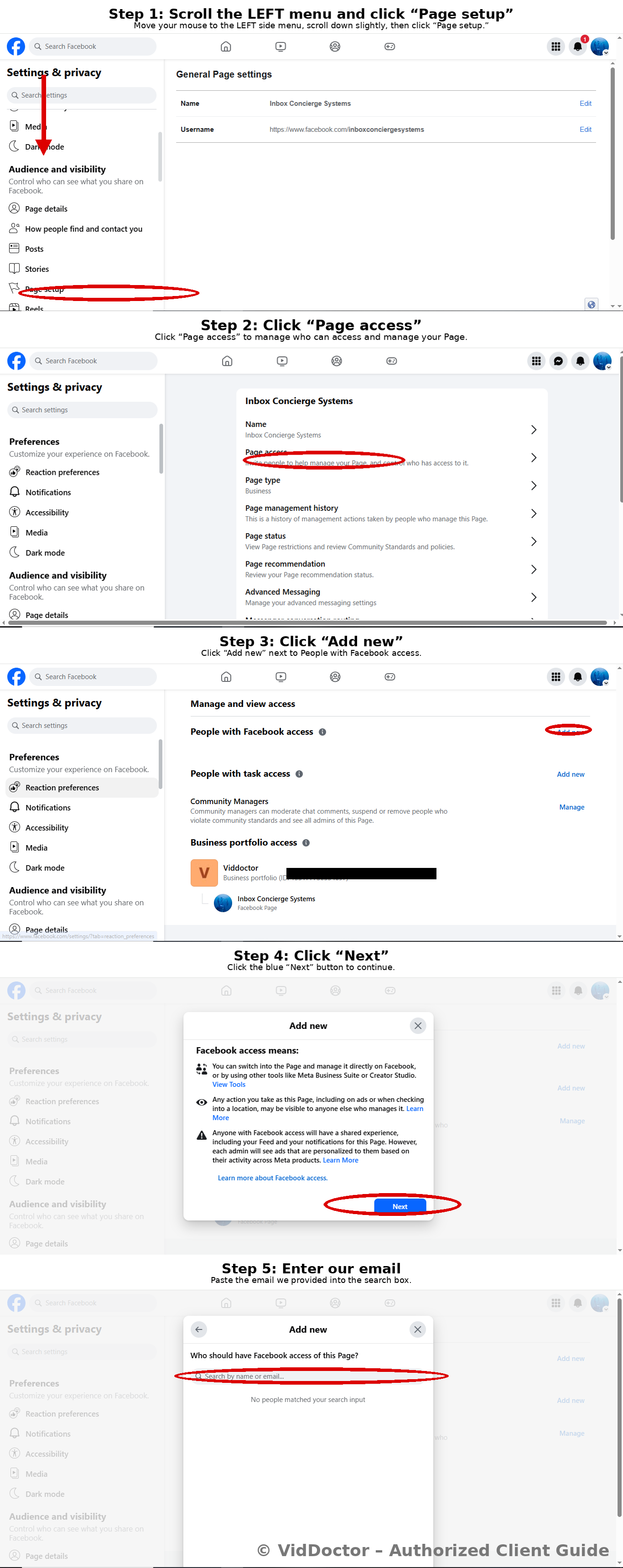
Please follow the official visual guide below.
This is the preferred and most reliable method.
Download / View:
VidDoctor Facebook Admin Access Guide (PDF)
(https://tinyurl.com/yvbvj4t9)
Before You Begin (Required)
Please confirm all of the following before proceeding:
You are an Admin of your Facebook Page
(Editor or Moderator access will not work)Your Instagram account is set to Business or Creator
Your Instagram account is connected to your Facebook Page
If you are unsure whether Instagram is connected, complete Step 1 below.
Step 1 — Connect Instagram to Your Facebook Page
(Skip this step if already connected)
Go to your Facebook Page
Click Settings
Open Linked Accounts or Instagram
Connect your Instagram account
Confirm Instagram shows as linked to your Page
Once connected, proceed to Step 2.
Step 2 — Grant VidDoctor Admin Access (Required)
Go to your Facebook Page
Click Settings
Open Page Access
(New Pages Experience → Page Access)Under People with Facebook access, click Add New
Enter the VidDoctor install email provided to you
Set access level to Full Control (Admin)
Confirm and approve the request
✅ That’s it — no further setup is required.
What Happens Next
After admin access is granted:
We connect your Smart Assistant
We test Facebook and Instagram messaging
We confirm successful installation by email
You do not need to take any further action.
Common Issues & Quick Fixes
Issue: Unable to add VidDoctor as Admin
→ Confirm your role is Admin, not Editor
Issue: Instagram not appearing
→ Complete Step 1, then retry Step 2
Issue: Access request fails
→ Log out of Facebook and log back in using the correct Admin profile
Was this article helpful?
That’s Great!
Thank you for your feedback
Sorry! We couldn't be helpful
Thank you for your feedback
Feedback sent
We appreciate your effort and will try to fix the article
